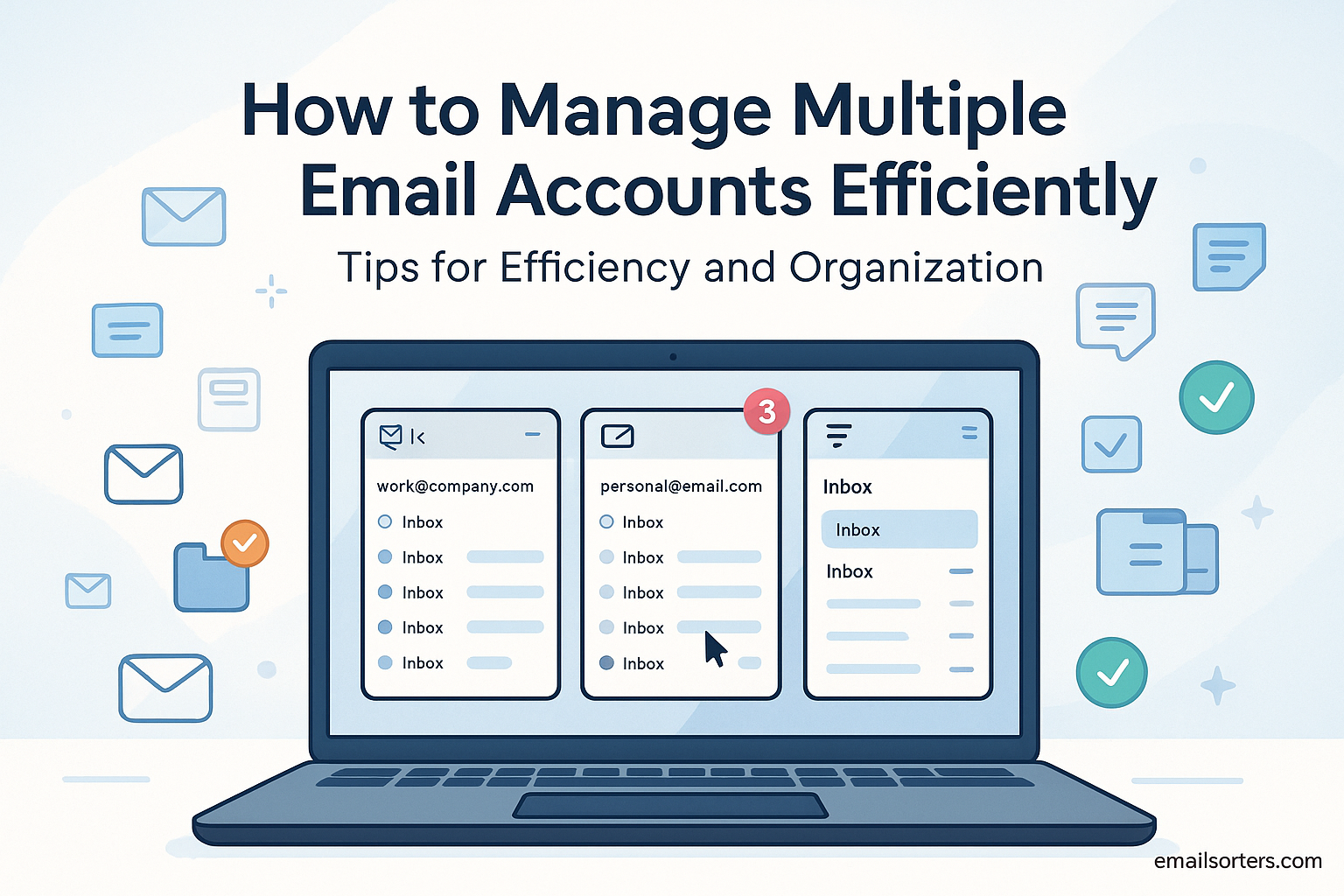
Managing multiple accounts for email can feel like a digital juggling act. You have your work inbox, your personal inbox, your “spam-but-I-need-the-coupons” inbox, and maybe a side-hustle inbox. Each one pings you with notifications. Each one has a different password. It is a formula for missed messages, login fatigue, and constant distraction.
Email has been with us for over half a century (a milestone we discuss in the fiftieth anniversary of email), and in that time, it has splintered. The “one-inbox” life is rare. The problem is not that you have multiple inboxes. The problem is that you do not have a system.
This guide will not just give you “tips.” It will give you a complete, expert-backed system for taming your email chaos. We will cover the best strategies, the right tools, and the security habits that will finally put you back in control of your digital life.
Why Do We Have So Many Email Accounts?
We have multiple email accounts because we need to separate our digital lives. We use different email addresses for work, personal matters, shopping, and different projects. This separation is good for security and organization.
Think of them as “digital buckets.” You are not messy for having them; you are organized. You probably have one for:
- Work: Your professional email on your company’s email domain. This is your “official” identity. Your company owns this email server and the data on it.
- Personal: Your primary
gmail.comoroutlook.comaddress. This is the hub for your life—for friends, family, and important personal business. - Specialized Accounts: You might have a family email account for household bills, a student email for school, or a safe email for children.
- Spam/Subscriptions: The “junk” account you use to sign up for newsletters, stores, and any service that might send you a what-is-no-reply-email.
- Projects: You might create an email account with a new email address idea for a side hustle or a specific project.
This separation is smart. You do not want your personal photos on your work’s server. But this smart decision means you now have 3-5 inboxes to check.
What’s the Big Problem with Managing Multiple Accounts?
The biggest problem is chaos and login fatigue. Constantly switching between inboxes is inefficient. This leads to missed messages, notification overload, and serious security risks, like using the same password for all accounts.
The problems go deeper than just being annoyed.
- Notification Overload: Your phone is a nightmare. You get pings from the Gmail app, the Outlook app, and your default Mail app. You are always distracted.
- Login Fatigue: You are constantly being hit with an automatic logout for security, forcing you to find your password again.
- Security Risks: This is the big one. To make life “easier,” people use the same password for all accounts. This is a massive security vulnerability.
- Context Switching: Citation Placeholder: Studies show that “context switching” (jumping from task to task) destroys productivity. Checking five inboxes is a perfect example of this.
- Digital Graveyards: You have inactive email accounts that are a security risk, but you are afraid to delete them because you might miss something.
What Is the Best Strategy for Managing Multiple Inboxes?
The best strategy is to choose one of two systems: Consolidation or Separation. Consolidation (a Unified Inbox) brings all your mail into one app. Separation (dedicated apps) keeps your work and personal lives in different apps to protect your focus.
There is no single “best” answer. The right system for you depends on your work style and your need for work-life balance.
Let’s compare them.
| Strategy | How It Works | Best For… |
| 1. Consolidation (Unified Inbox) | Use one app (like Apple Mail, Outlook, Spark) to pull all accounts into one view. | People who want “one place” for everything and are highly organized. |
| 2. Separation (Dedicated Apps) | Use different apps for different accounts (e.g., Outlook for Work, Gmail for Personal). | People who need strict work-life balance and want to avoid errors. |
| 3. Forwarding (The “One Inbox”) | Forward all secondary mail to your primary inbox. | Minimalists who are experts at using filters and labels. |
| 4. Aliases (The “Pro” Method) | Use alias addresses to filter mail before it hits your inbox. | Everyone. This is the best way to reduce the number of accounts you need. |
Strategy 1: How to Use a Unified Inbox (Consolidation)
A unified inbox is a feature in an email client (like Apple Mail or Outlook) that pulls all your email from all your accounts into one single inbox. It is the “one-stop-shop” method for seeing all new mail at once.
What Is an Email Client?
An email client is a desktop or mobile application (like Apple Mail, Microsoft Outlook, or Thunderbird) that connects to your email servers. Instead of using a web browser, you use this app. Its main purpose is to manage multiple accounts.
Top Email Clients with a Unified Inbox:
- Apple Mail: (Free, built-in on Mac/iPhone) Simple, clean, and effective.
- Microsoft Outlook: (Paid, part of 365) One of the most powerful. It can pull in Gmail, Yahoo, and work accounts and combine them.
- Spark: (Free/Premium) A popular mobile and desktop app known for its “Smart Inbox” that sorts mail for you.
- Thunderbird: (Free, open-source) A powerful, customizable desktop client.
How to Set It Up
The setup is simple.
- Open the email client (e.g., Apple Mail).
- Go to “Add Account.”
- Add your first account (e.g.,
[email protected]). - Repeat the process: “Add Account.”
- Add your second account (e.g.,
[email protected]). - The app will then have a “master” inbox called “All Inboxes.”
You can learn the basics by following a guide on how to set up email on iPhone and just repeating the steps for each account.
Pros and Cons of a Unified Inbox
A unified inbox is a popular choice, but you must be aware of the risks.
| Pros | Cons |
| One place to check. | Can be very chaotic and overwhelming. |
| One app to learn. | High risk of error. (e.g., sending a personal email from your work account). |
| You won’t miss an “urgent” email. | Your work emails get mixed with spam. |
| Streamlined view. | Defeats work-life balance (you’re “always on”). |
Strategy 2: How to Use the “Separation” Method (Dedicated Apps)
The “separation” method uses dedicated apps or browser profiles for each account. For example, you use the Outlook app only for work and the Gmail app only for personal. This stops cross-contamination and helps work-life balance.
This is my personal, expert-backed recommendation. As someone who lives and breathes digital content, I have found this to be the only system that protects my focus and prevents critical errors.
How It Works on Desktop: Browser Profiles
This is the key. Do not log in to all your accounts in one browser.
- In Google Chrome, click your profile icon in the top right.
- Click “Add.”
- Create a new profile called “Work.”
- In this “Work” profile, log in only to your work email and work apps.
- Now, switch back to your “Personal” profile.
- You are now logged in to both accounts, in separate, sandboxed environments.
How It Works on Mobile: App-per-Account
This is even simpler.
- Work App: Download the Microsoft Outlook app. Log in only with your work email.
- Personal App: Download the Gmail app. Log in only with your personal email.
The “Notification” Trick for Work-Life Balance
This is where the separation method becomes a superpower.
- In your Work App (Outlook), go to notification settings. Turn them off from 6 PM to 8 AM and all weekend.
- In your Personal App (Gmail), leave notifications on as normal.
This act proves the value of this system. You get your personal life back, while still being in full control of your work life.
Pros and Cons of the Separation Method
This method is about being intentional with your time and attention.
| Pros | Cons |
| Zero chance of error. You cannot “reply-all” to a work thread from your personal account. | You must remember to check the other app. |
| Protects focus. You check your work email when you are “in” the work app. | It takes up one more app icon on your phone. |
| Better for security. A breach in your personal browser does not expose your work credentials. | Not a “single pane of glass” view. |
| Enforces work-life balance. |
Strategy 3: How to Use the “Forwarding” Method (The One-Inbox Rule)
The “forwarding” method involves setting up all your “secondary” accounts to automatically forward their mail to your “primary” inbox. This creates one master inbox, but it can get very messy if not managed with filters.
How to Set It Up
- Log in to your secondary account (e.g.,
[email protected]). - Go to Settings > Forwarding and POP/IMAP.
- Click “Add a forwarding address” and add your primary email (e.g.,
[email protected]). - Verify the address.
- Choose “Forward a copy of incoming mail to…”
Why You Must Use Filters
If you just forward everything, you are creating a new kind of chaos.
The solution is to configure email folders (or labels) in your main inbox.
Then, create a filter:
- IF: Mail is from
[email protected] - THEN: “Skip the Inbox (Archive it)” and “Apply the label:
Subscriptions.”
This way, the mail is in your main account, but it never clogs your primary inbox.
Pros and Cons of the Forwarding Method
- Pros: You truly have one login and one inbox. It is a minimalist’s dream.
- Cons:
- It is complex to set up.
- It can fail. Sometimes forwarded mail is marked as spam.
- When you reply, it will show your primary email address, which can be confusing.
- A mailer-daemon error can be hard to trace.
Strategy 4: How to Use Alias Addresses (The “Pro” Method)
The best way to manage multiple accounts is to not create them in the first place. Use alias addresses instead. An alias is a nickname (e.g., [email protected]) that points to your main inbox, allowing you to pre-sort mail with filters.
This is an organizational strategy, not just a management one.
- The “+” Hack: When you sign up for a store, use
[email protected]. It all goes to[email protected]. - The Filter: Create a filter for all mail to
[email protected]to auto-label it “Shopping.” - The Result: You have one inbox, but it is “pre-organized” for you.
How to Manage Email Security and Passwords
When you manage multiple accounts, your security risk multiplies. If you use the same password for all of them, you are creating a “house of cards.”
1. Use a Password Manager (Non-Negotiable)
This is the most important piece of advice. You must use a password manager (like 1Password, Bitwarden, or your built-in Google/Apple Keychain).
- It allows you to use a unique, 20-character, random password for every single email account.
- You only have to remember one master password.
- This is the single best defense against hackers.
2. Enable Two-Factor Authentication (2FA)
For every account that offers it, turn on 2FA. This means a hacker needs your password and your phone to get in.
3. Check Your Recovery Information
Log in to your accounts. Go to the security settings. Is your recovery phone number correct? Is your recovery email correct? If you get locked out, this is your only way back in. This is also vital for inactive email accounts that you want to keep.
How to Deal with Notification Overload
You control your notifications; they do not control you.
- Turn Off Badges: The red “1000+” icon is pure stress. Turn it off.
- Turn Off Banners: You do not need a pop-up for every. single. email.
- Use “VIP” Alerts: Most mail apps let you set notifications only for specific people. Set this for your boss, your partner, and your key clients. Let everything else be silent.
- “Batch” Your Email: This is the #1 productivity hack. Check email 3 times a day (e.g., 10 AM, 1 PM, 4 PM). Do not check it 100 times. This gives you back hours of focus.
What Are Common Mistakes to Avoid?
I have seen every possible email mistake. Here are the most common ones.
What is the worst mistake when handling multiple accounts?
The worst mistake is replying to a professional email from your personal account. I once saw someone reply to a 200-person work thread from their personal email… with a joke. It was not pretty. This is the #1 reason to use the “Separation” (Strategy 2) method. Be very careful with CC and BCC.
What are other common errors?
- Using Your Work Email for Personal Logins: Never. When you leave the company, you lose access to all those accounts.
- Not Organizing: Just having 50,000 emails in one “Inbox” folder. You must configure email folders and filters.
- Forgetting About Email Drafts: Your drafts folder can sync across devices. It is a great place to start an idea, but it can also become a digital graveyard of unfinished thoughts. Clean it out.
Your Final, Efficient Email System
You do not need to be a victim of your inboxes. Your multiple accounts just need a system.
- Choose Your Strategy: I recommend Separation (Strategy 2) for 99% of people. Use different apps for work and personal.
- Get a Password Manager: This is not optional.
- Control Your Notifications: Turn most of them off. Check email on your schedule.
- Use Aliases: Stop creating new email accounts for spam.
Take 30 minutes today to set this up. It will give you back hours of your time and peace of mind for years to come. For more on the basic structure of email, see this email address guide.