Let’s be honest: your main email inbox is probably a digital junk drawer. It’s a single, chaotic bucket holding urgent client work, 50% off pizza coupons, bank alerts, and that weird newsletter you don’t remember signing up for. This is the problem with using one email for everything. Alias addresses are the solution.
Think of an alias as a “mask,” a nickname, or a smart forwarding address for your real email. It is one of the most powerful, under-used tools for taking back control of your inbox.
Using alias addresses allows you to create a simple, effective system for privacy, spam control, and professional organization. All the mail still arrives in one main inbox, but it’s pre-sorted. This guide is a definitive plan for setting up and using email aliases, from the simple “plus” hack to professional, role-based addresses.
What Are Email Alias Addresses?
An email alias is a forwarding email address that directs all received messages to your primary inbox. It is a nickname, not a new account. You do not get a separate login, password, or storage for an alias. It is a lightweight pointer, not a full-blown inbox.
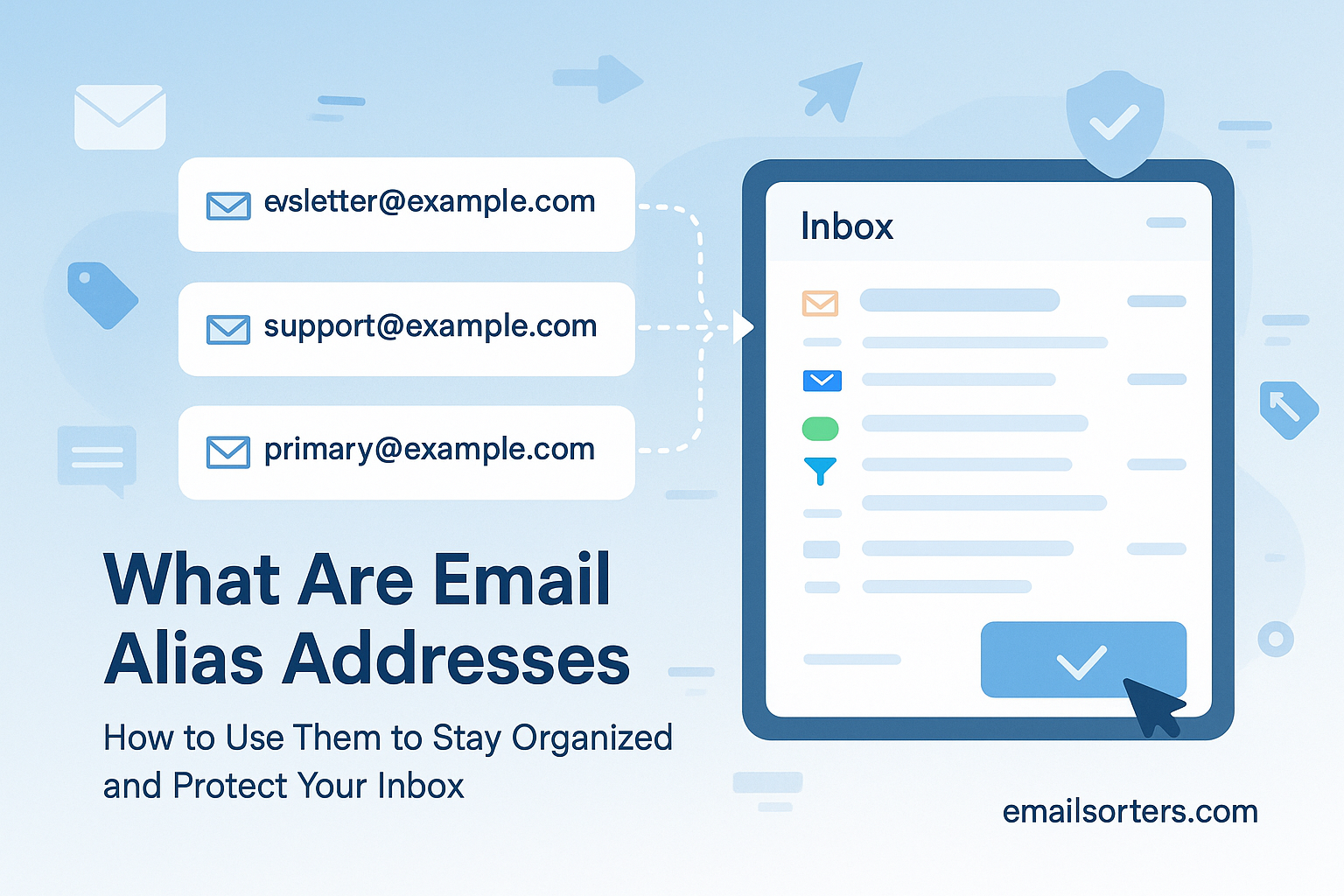
For example, you could have three aliases:
…and all of them could be set to deliver mail to your one, true inbox: [email protected].
This is the foundational concept. An alias is a “receptionist” that directs mail to the right person, even if that person is just you. For more background, you can read the general history of email aliases.
How Is an Alias Different From a Separate Email Account?
An alias is a simple pointer, while a separate account is a complete, new inbox. An alias is a “nickname” for your current inbox. A new account has its own password, storage, and login.
This is the most common point of confusion. Using different email addresses (as in, separate accounts) is a great strategy for security. But it also means you have to log in to multiple accounts.
An alias is the simple, one-inbox solution.
| Feature | Email Alias | Separate Email Account |
| Login & Password | None. Uses your primary account’s. | Yes. A unique login and password. |
| Inbox | None. Forwards to your primary inbox. | Yes. A separate, new inbox. |
| Storage | Uses your primary account’s storage. | Has its own storage (e.g., 15GB). |
| Management | Simple. One inbox to check. | Complex. Must log in to many places. |
| Use Case | Organizing, spam-filtering, privacy. | Separating work, personal, or clients. |
What Are the Top Benefits of Using Email Alias Addresses?
The top benefits of using alias addresses are spam control, automatic organization, and privacy. They let you track (and block) who sells your data, pre-sort your inbox with filters, and protect your real email address from the public.
How Do Aliases Stop Spam? (The “Canary Trap”)
This is my favorite use. An alias is your personal “spam canary.” When you sign up for a new service, you give them a unique alias.
Here is a real-life example:
I signed up for a new online store last month. I used the alias [email protected].
Two weeks later, I started getting “investment opportunity” spam sent to that exact address.
The verdict? That store either sold my data or had a breach.
The Fix: I created a filter in Gmail that sends any message to [email protected] directly to the “Trash.” Problem solved. I have cut off the spam source, and I know never to shop there again.
How Do Aliases Improve Organization? (With Filters)
An alias is the key to unlocking automated email organization. When you combine an alias with a filter, your email files itself.
You can configure email folders (or labels) and then create aliases to send mail directly to them.
Your New System:
- You create a folder/label named “Finance.”
- You create an alias called
[email protected]. - You create a filter: “All mail sent to
[email protected]-> Skip Inbox, Apply label: Finance.” - You then give this alias to your power company, your credit card, and Netflix.
You will never have a bill in your inbox again. They will all be filed neatly in the “Finance” folder, waiting for you.
How Do Aliases Protect Your Privacy?
Your primary email address is a key to your identity. An alias acts as a “mask” that protects it.
- Selling something online? Use
[email protected]. - Signing up for a forum? Use
[email protected]. - If that address ever gets spammed or harassed, you just delete the alias. Your primary address is safe.
How Do Aliases Look More Professional?
For a small business, this is critical. Which looks more trustworthy?
That info@ address is an alias. It looks professional and implies a full team, even if it’s just Bob. It forwards to his personal [email protected] inbox. This requires a custom email domain, which is the most powerful way to use aliases.
What Are the Different Types of Email Aliases?
There are three main types of alias addresses. The “plus” alias (e.g., +tag), the “dot” alias (a Gmail quirk), and a “true” alias, which is a separate address you create in your account settings.
The Quick & Easy Hack: “Plus” Aliasing (+ Tagging)
This is the simplest form of alias, supported by Gmail, Outlook, and others. You can invent an alias on the spot.
- How it works: Your email server ignores the
+symbol and anything that comes after it. - Example: Mail sent to
[email protected]is delivered to[email protected]. - Pros: Instant. You can create infinite aliases. No setup needed.
- Cons: It’s not a “clean” address. And, unfortunately, many website sign-up forms are poorly coded and will reject an email address that contains a
+symbol.
The Gmail Quirk: “Dot” Aliasing (.)
This is a specific feature of Gmail. Google’s servers do not read dots in usernames.
- How it works:
[email protected]is the same as[email protected]and[email protected]. - Example: You can sign up for one service with
[email protected]and another with[email protected]. - Use Case: This is less of a filtering tool and more of a way to have slightly different addresses. Its organizational power is much weaker than the “+” hack.
The “True” Alias: Custom Addresses
This is the most powerful method. Both Outlook.com (free) and Google Workspace (paid) allow you to create completely separate, new email addresses that all function as aliases for your main account.
- Example: Your main inbox is
[email protected]. You can create[email protected]and[email protected]. - These are clean, real email addresses. No one knows they are aliases.
- They will never be rejected by a web form.
- This is the “pro” method.
How to Create and Use Email Alias Addresses (Step-by-Step)
The method to create alias addresses depends on your email provider. The “+” hack is universal, but creating a “true” alias is a different process for Gmail, Outlook, and custom domains.
How to Use the “Plus” Alias in Gmail (The Instant Method)
This is a two-step process. Using the alias is step one. Filtering it is step two.
- At the Sign-up Form: When a website asks for your email, type your address with a tag.
- Example:
[email protected] - Example:
[email protected]
- Example:
- In Gmail (The Important Part): Create the filter.
- Go to Settings > See all settings > Filters and Blocked Addresses.
- Click “Create a new filter.”
- In the “To” field, put your new alias:
[email protected]. - Click “Create filter.”
- On the next screen, choose your action. My favorite is:
- “Skip the Inbox (Archive it)”
- “Apply the label:” (Create a new label called “StoreName” or “Newsletters”).
- Click “Create filter.”
Now, emails to that alias will bypass your inbox and be filed automatically.
How to Create a True Alias in Outlook.com (The Best Free Method)
Outlook.com’s system is fantastic and free.
- Log in to your Microsoft account at
account.microsoft.com. - Go to “Your info” at the top.
- Click on “Sign-in preferences” (this may be called “Account info” or “Manage your sign-in email”).
- You will see a section called “Account aliases.”
- Click “Add alias.”
- You can “Create a new email address and add it as an alias” (e.g.,
[email protected]). - Once created, this is a fully-functional alias. You can even send from it.
How to Create a True Alias on a Custom Domain (The Professional Method)
This is the standard for any business and requires you to own a custom domain.
Method 1: Google Workspace (Admin)
If you use Google Workspace, the admin (which is probably you) can add aliases.
- Go to your Admin Console.
- Go to Users > Manage users.
- Click your user name.
- Click “Add alternate emails.”
- You can now type in
[email protected],[email protected], etc.
Method 2: cPanel / Web Host (Forwarders)
If your domain is with a standard web host, you use “Forwarders.”
- Log in to your cPanel.
- Go to Email > Forwarders.
- Click “Add Forwarder.”
- Address to Forward:
[email protected] - Destination:
[email protected] - Click “Add Forwarder.”
Be careful with forwarders. If you forward to an inactive email account, the sender will get a “bounce” message, often a mailer-daemon error, which looks unprofessional.
How Do I Manage and Send From an Alias?
You manage aliases with filters. To send from an alias, you must add it to your “Send mail as” settings in your email client.
How to Send From an Alias in Gmail
By default, you can’t send from a + alias. But if you have a “true” alias (from Workspace or another account), you can add it.
- Go to Settings > See all settings > Accounts and Import.
- In the “Send mail as” section, click “Add another email address.”
- A pop-up window will appear. Enter your alias name and email address (
[email protected]). - Check the “Treat as an alias” box.
- You will need to go through a verification step to prove you own the address.
- Once verified, a “From” dropdown menu will appear in your “Compose” window.
When you reply to a message sent to your alias, Gmail is smart. It will automatically set the “From” address to be the alias. Just be sure to check the From field, just as you check CC and BCC.
How to Send From an Alias in Outlook
This is much easier. If you added a true alias to your Microsoft account:
- Compose a new email.
- Click the “…” (Options) menu and select “Show From.”
- A new “From” button appears above the “To” field.
- Click it and select your alias from the dropdown list.
What Are the Problems with Email Aliases?
The main problem with alias addresses is that the simple “plus” hack is often blocked by web forms. Also, without filters, aliases can just add more noise to your inbox.
- Problem 1: The “+” Is Blocked. This is the most common frustration. You try to be smart and sign up with
[email protected], and the form flashes red: “Invalid Email.”- Workaround: Use the “dot” hack (
[email protected]) or, better, a true alias from Outlook.com.
- Workaround: Use the “dot” hack (
- Problem 2: Forgetting to Use Filters. An alias without a filter is just a labeled message. It doesn’t clean your inbox. You must pair your aliases with filters that “Skip the Inbox.”
- Problem 3: Sending From the Wrong Address. You receive an email to
[email protected]. You hit reply, but your email client sends it from[email protected]. This breaks the professional image. Always check the “From” field in your email drafts. - Problem 4: Security. An alias is not a high-security feature. If someone hacks your main account, they have access to all your alias mail, too. It’s a privacy tool, not a security wall. Always use strong passwords and check your automatic-logout settings.
Alias vs. Group vs. Distribution List: What’s the Difference?
An alias sends mail to one person. A group or distribution list sends mail to multiple people.1
This is a simple but important distinction.
- Alias:
info@->me@(One-to-one) - Group:
team@->me@,bob@,sue@(One-to-many)
A group list is what you use for team@ or sales@ when multiple people need to see the message. A family email account is often a group list, or it can be a true alias. A student email is a full account, and a safe email for children is a special, monitored account. They are all different email addresses with different purposes.
Your Alias Action Plan
Alias addresses are the single best way to organize your digital life without the headache of managing multiple accounts. They are a superpower that’s been hiding in your settings menu.
Start simple.
- This week: Do not create an email account for that new service. Instead, use the
+hack. Sign up with[email protected]. - Then: Go into Gmail and create one filter. Send all mail to that address to a new “Newsletter” label and skip the inbox.
- To manage it: You can easily set up email on your iPhone and all your devices to sync these folders.
You have just taken your first step to a cleaner, smarter, and more private inbox.


