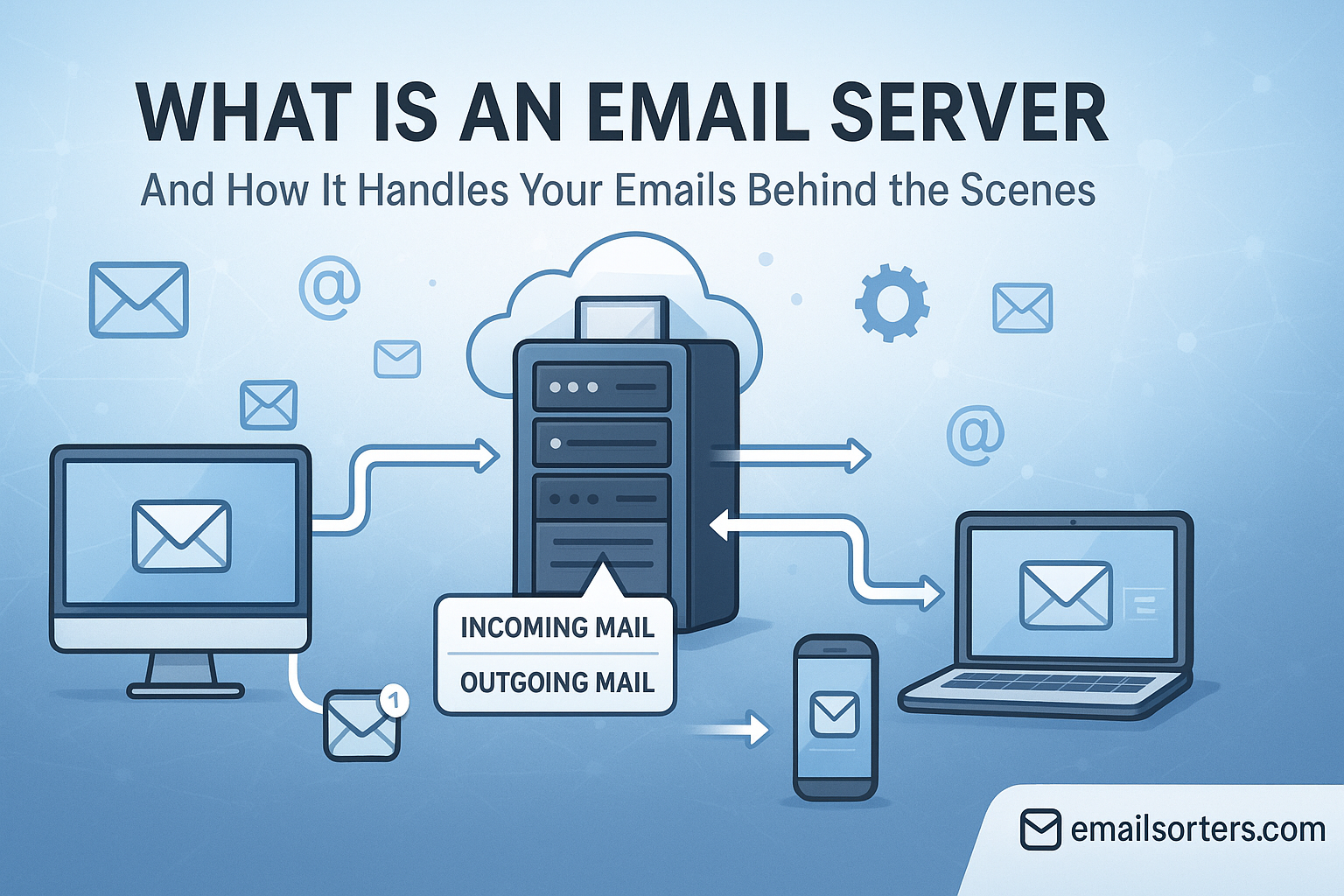
You hit “Send” and your message flies across the internet, arriving in another inbox in seconds. It just works. But behind that simple click is a powerful, complex, and silent workhorse: the email server.
An email server is the digital equivalent of a post office, a postman, and a mailbox all rolled into one. It is a dedicated computer system that does one job: send, receive, and store email. It is the invisible engine that has powered digital communication for decades.
But why should you care? Because understanding how it works is the key to understanding email security, deliverability, and where your data actually lives. This guide breaks down the entire process, from the protocols to the types of servers, so you can finally see how the magic happens.
What Is an Email Server?
An email server is a dedicated computer system that sends, receives, and stores email messages. It is the engine that runs your inbox. When you send a message, it is your server’s job to find the recipient’s server and deliver it.
An “email server” is not just one machine. It is a system of two different servers working together.
- An Outgoing Server: This sends your mail.
- An Incoming Server: This receives and stores mail for you.
Think of it like a full-service post office. When you drop off a letter (send an email), the outgoing mail clerk (the server) takes it. He figures out where it needs to go. He hands it off to a delivery truck (the internet). That truck delivers it to the recipient’s local post office (their server), which holds it in their P.O. Box (their inbox) until they come to pick it up.
How Does an Email Server Work? (The 5-Second Journey)
When you send an email, your app connects to your SMTP server. This server looks up the recipient’s email domain to find their MX server. It connects, transfers the message, and the recipient’s IMAP or POP3 server holds the mail until they log in.
It sounds complex, but it is a simple, 5-step handoff. Let’s trace the journey of one email.
Step 1: You Hit “Send” (The Client and SMTP)
Your email client (like Outlook or the Gmail app) connects to your outgoing SMTP server. SMTP (Simple Mail Transfer Protocol) is the “postman” of the internet. Its only job is to send and deliver messages.
The moment you hit “Send,” your app packages your message. It finds the SMTP server address (e.g., smtp.your-domain.com) you have in your settings. It then hands the message to that server and says, “Deliver this.”
Step 2: Finding the Recipient (DNS and MX Records)
Your SMTP server now has the message. It can see it is for [email protected]. The server’s first job is to figure out where other-company.com lives.
To do this, it acts like a detective.
- It connects to the
DNS(Domain Name System). TheDNSis the Internet’s giant public phone book. - It asks the
DNS, “What is the mail server for the email domainother-company.com?” - The
DNSchecks its records and gives back the “address” for that domain’s mail server. This address is called an MX (Mail Exchanger) Record.
The MX record might be something like mx.other-company.com. Your server now has its target.
Step 3: The Server-to-Server Handoff (The SMTP Conversation)
Your SMTP server connects directly to the recipient’s MX server. They have a brief, technical “conversation” in a language they both understand (the SMTP protocol).
- Your Server:
HELO smtp.your-domain.com(Hello, I’m…) - Their Server:
HELO mx.other-company.com(Hi, I’m…) - Your Server:
MAIL FROM: <[email protected]>(I have mail from…) - Their Server:
250 OK(Okay, I’m ready) - Your Server:
RCPT TO: <[email protected]>(It’s for…) - Their Server:
250 OK(Okay, I’ll accept it) - Your Server:
DATA(Here is the message…) - Their Server:
354 Go ahead - Your Server: (Sends the entire email:
From,To,Subject, and body) - Their Server:
250 OK(Got it, thanks)
The email is now successfully transferred.
Step 4: The Mail Sits and Waits (The Mailbox)
The recipient’s MX server has the email. It does one last check. It scans the message for viruses and spam. If it passes, the server places the message into Jane Doe’s specific mailbox on that server.
The email is now “delivered.” It is not on Jane’s phone yet. It is sitting in her digital P.O. Box on the server, waiting for her to check it.
Step 5: You Check Your Mail (IMAP and POP3)
When Jane opens her email app, her app connects to her incoming mail server. It uses one of two protocols to retrieve the message: IMAP or POP3.
This is the final step. The app “fetches” the new message, and it appears on Jane’s screen. The 5-second journey is complete.
What Are the Key Email Protocols? (SMTP, IMAP, POP3)
The three main protocols that run all of email are SMTP, IMAP, and POP3. SMTP is for sending mail. IMAP and POP3 are for retrieving mail. IMAP is the modern standard that syncs your mail across all devices.
These acronyms are the language of email. Understanding them is the key.
What Is SMTP (Simple Mail Transfer Protocol)?
SMTP is the universal protocol for sending email. It is the “postman” that delivers your message from your server to the recipient’s server.
SMTP is only for sending. When your email app’s settings ask for your “Outgoing Mail Server,” it is asking for your SMTP server address. This protocol is the workhorse. It has been the standard since the 1980s, a core part of email’s long history (learn more about the fiftieth anniversary of email).
What Is IMAP (Internet Message Access Protocol)?
IMAP is the modern protocol for retrieving email. It keeps your mail on the server and syncs all your actions (read, delete, move) across all your devices, like your phone and laptop.
This is the “sync” protocol.
- When you read an email on your phone,
IMAPtells the server to mark it “read.” When you log in on your laptop, it shows as “read.” - When you configure email folders,
IMAPsyncs that structure everywhere. - When you save email drafts,
IMAPsaves them to the server so you can finish them on another device.
What Is POP3 (Post Office Protocol 3)?
POP3 is an older protocol for retrieving email. It downloads messages from the server to a single device, then typically deletes the message from the server.
POP3 is like a real post office. You go, pick up your mail, and take it home. The post office does not keep a copy. This was fine when people had one computer.
Today, it is a problem. If your phone downloads an email, your laptop will never see it. This is why IMAP is the standard for anyone who manages multiple accounts or devices.
| Protocol | Full Name | What It Does | Analogy |
| SMTP | Simple Mail Transfer Protocol | Sends email | The Postman |
| IMAP | Internet Message Access Protocol | Syncs email | The Cloud Mailbox |
| POP3 | Post Office Protocol 3 | Downloads email | The P.O. Box |
What Are the Different Types of Email Servers?
The main types are cloud-hosted servers (like Google and Microsoft), on-premise servers (which you manage yourself), and shared web host mail servers (often included with website hosting).
Cloud-Hosted Servers (Google Workspace, Microsoft 365)
These are “software as a service” (SaaS) platforms. You pay a monthly fee, and they manage all the hardware, software, security, and deliverability for you.
- Pros: Extremely reliable, high-security, easy to use.
- Cons: Monthly cost per user.
- Who uses it? 99% of modern businesses.
On-Premise Servers (Microsoft Exchange)
An “on-premise” server is hardware you own and manage in your own office or data center. You are 100% responsible for the software, security, and maintenance.
- Pros: Total control over data and security.
- Cons: Extremely expensive, requires a dedicated IT staff, and you are responsible for fighting spam and blacklists.
- Who uses it? Large corporations, governments, and regulated industries with specific data-privacy needs.
Shared Web Host Mail
This is the “free” email service that comes with your website hosting (e.g., cPanel). It is a basic email server shared by hundreds of other websites on the same machine.
- Pros: It is free with your hosting.
- Cons: Poor deliverability, low storage, and a “bad neighbor” effect. If another user on your server sends spam, the entire server’s IP can get blacklisted, meaning your emails will not get delivered.
How Do Email Servers Handle Security and Spam?
Email servers use a layered defense. This includes spam filters (like SpamAssassin), antivirus scanners, sender reputation checks (IP blacklists), and encryption (SSL/TLS) to protect your data.
Spam Filtering and Blacklists
When your server receives an email (Step 3), it does not just accept it blindly. It runs a series of checks.
- IP Blacklist Check: It checks the sender’s IP address against a “Real-time Blackhole List” (RBL). If the sender is a known spammer, the server rejects the email.
- Content Scanning: It scans the email’s content for spammy words, bad links, and malware.
- Authentication Check: It checks security records like
SPFandDKIMto verify the sender is really who they say they are.
What Is Email Encryption (SSL/TLS)?
Encryption (like SSL/TLS or STARTTLS) scrambles the connection between your email app and the email server. This stops hackers from “eavesdropping” on your login or emails while they are in transit.
When you set up email on your iPhone, you will see a toggle for “Use SSL.” This is what enables that secure connection. It is no longer optional; it is essential.
How Servers Handle Bounced Mail (Mailer-Daemon)
When a server cannot deliver an email, it generates a “bounce” message. This “Non-Delivery Report” (NDR) is often sent from a system account named MAILER-DAEMON.
This is not spam. It is your email server telling you it failed. When you get a mailer-daemon message, read it. It will tell you why it failed.
User unknown: The email address is wrong.Mailbox full: The recipient’s inbox is full.Blocked: The recipient’s server thinks you are a spammer.
How Do I Find My Email Server Settings?
You can find your server settings by logging into your email provider’s website and looking under “Settings,” “Forwarding,” or “IMAP/POP.” For work accounts, you must ask your IT administrator.
These settings are what you need to set up email on your iPhone or any other new device.
Here are the common settings for major providers:
| Provider | IMAP Server (Incoming) | SMTP Server (Outgoing) |
| Gmail | imap.gmail.com | smtp.gmail.com |
| Outlook | outlook.office365.com | smtp.office365.com |
| Yahoo Mail | imap.mail.yahoo.com | smtp.mail.yahoo.com |
| AOL | imap.aol.com | smtp.aol.com |
Do I Need My Own Email Server?
No, 99.9% of users do not need their own email server. The cost, technical expertise, and security management are extremely high. A hosted cloud service (like Google Workspace or Microsoft 365) is more secure, cheaper, and more reliable.
The moment you have one security lapse, your server is hijacked. Hackers will use it to send 100,000 spam emails, destroying your company’s IP reputation for months. For the price of a cloud subscription, you are paying for Google’s or Microsoft’s entire army of security experts to do this for you. It is the best deal in tech.
You can look up the list of mail server software if you are curious, but it is a deep, technical world.
How Does This Relate to My Day-to-Day Email?
Understanding the email server explains all the weird parts of email.
- Why do I need different email addresses? Because your work server is owned by your company. Your personal server is owned by you.
- Why do inactive email accounts get deleted? Because you are taking up space on a server.
- Why does my app need an automatic logout? It is a server-side security policy that expires your “session.”
- Why do alias addresses work? They are just a server-side “rule” that forwards mail.
- Why does what-is-no-reply-email exist? It is an unmonitored mailbox on a server, set up only to send (via
SMTP) but not receive. - What are cc-and-bcc? Just an instruction for the server on how to
RCPT TO(deliver) the message.
The Silent Hero of the Internet
The email server is the unsung hero of the digital world. It is a perfect example of “federated” technology. Unlike a closed social media app, anyone can set up their own server. My Gmail server can talk to your private server, which can talk to a Microsoft server.
This open, decentralized system has powered our most critical communication for over 50 years. While it may seem old, it is reliable, robust, and the one tool that truly connects the entire internet.


