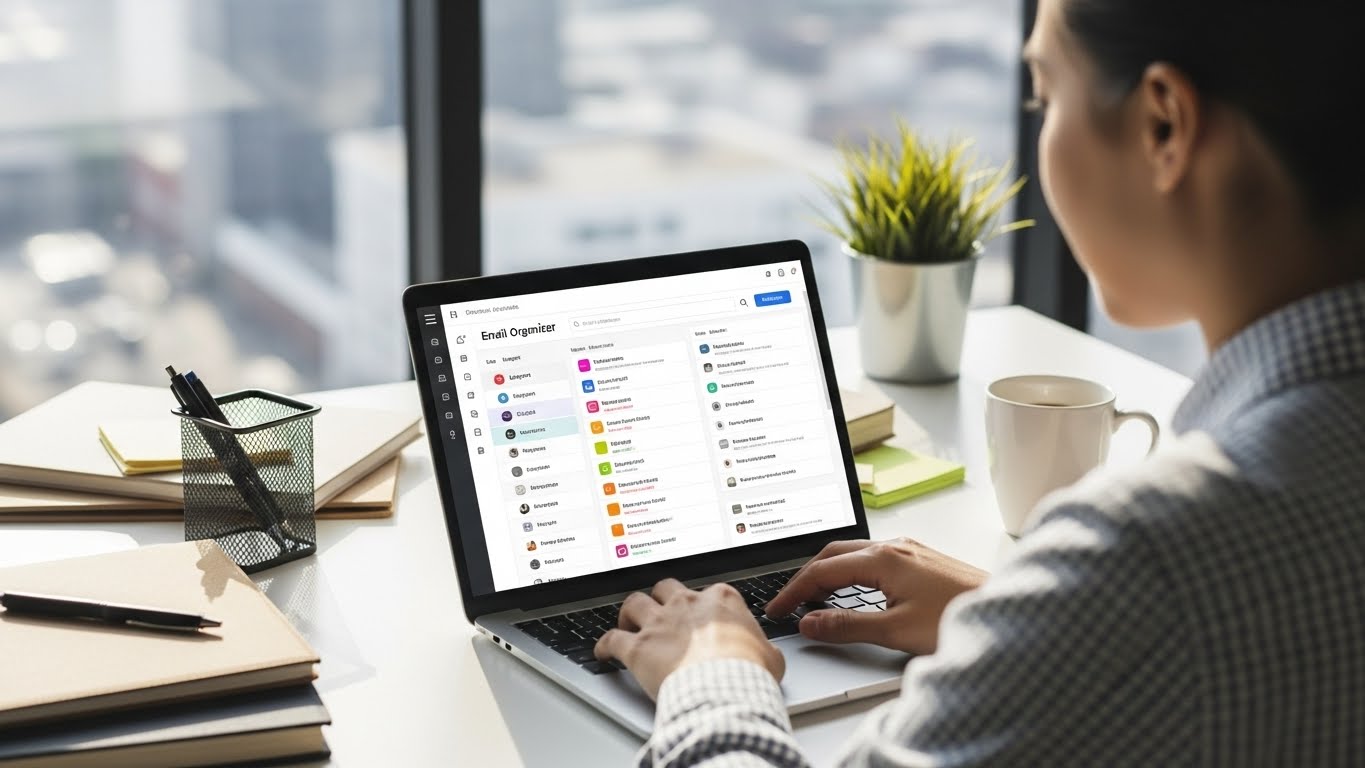
Using an efficient email organizer is the only way to truly regain control when your inbox is overflowing with thousands of unread messages. Instead of wasting hours deleting junk manually, these tools allow you to highlight what matters. This guide explains exactly what an email organizer is, how it works, and ranks the 9 best tools available to fix your inbox today.
What Is an Email Organizer?
An email organizer is software that sorts, prioritizes, and manages incoming messages to reduce inbox clutter. It automates tasks like filing newsletters, unsubscribing from junk, and highlighting urgent emails, allowing you to focus on what matters without manually sorting every message.
Understanding the Concept
Think of an email organizer as a digital executive assistant. It stands between the sender and your main inbox. Before you even see a new message, the organizer analyzes it. If the email is junk, it gets discarded. If it is a newsletter, it gets filed for later reading. If it is from your boss or a key client, it goes straight to the top of the list.
Organizing vs. Deleting
Many people think organizing just means deleting old emails. While cleaning up is part of the process, true organization is about creating a sustainable workflow. An email organizer sets up a system where emails land in the right place automatically. You stop reacting to every notification and start processing email on your own terms.
Manual vs. Automated Organization
You can organize email manually by dragging messages into specific folders, but this takes immense time and discipline. Automated email organizers use software rules or Artificial Intelligence (AI) to do this for you. They learn your habits over time. If you never open emails from a specific store, the organizer eventually stops showing them to you or suggests unsubscribing.
How Does an Email Organizer Work?
Email organizers work by connecting to your email client via API or IMAP to scan headers and metadata. They apply pre-set rules or AI algorithms to categorize messages into folders, separate newsletters from personal mail, and snooze low-priority items until you are ready to read them.
Filters and Rules
The most basic form of organization uses “If/Then” logic. You tell the system: “If an email contains the word ‘Invoice,’ move it to the Finance folder.” Once you set this up, the tool handles it in the background. You never have to drag that file manually again.
Labels vs. Folders
Different tools use different sorting methods. Folders work like physical bins; an email goes inside and disappears from the main view. Labels work like sticky notes; the email stays in the main view but carries a tag like “Work” or “Urgent.” Most organizers allow you to choose the method that fits your mental model best.
Smart and AI Sorting
Modern tools go beyond basic rules. They use machine learning to analyze the content of your messages. The software detects if an email is a travel itinerary, a shipping notification, or a personal letter. It groups similar emails together so you can process them in batches (e.g., “Review all 15 newsletters”) rather than individually.
What Are the Benefits of Using an Email Organizer?
The primary benefit of using an email organizer is regaining control over your time and attention. By automatically filtering distractions, you respond faster to critical messages, reduce anxiety caused by unread badges, and maintain a cleaner digital workspace without spending hours on manual maintenance.
Less Clutter, More Focus
Visual clutter competes for your attention. When your inbox is full of unread promotional emails, your brain has to work harder to identify important tasks. An email organizer hides the noise. You see a clean list of actionable items, which lowers stress and improves your ability to focus on deep work.
Faster Response Times
You often miss urgent requests because they get buried under low-priority updates. With an organizer, high-priority emails from clients or team members stay visible. You reply faster because you spend less time searching and more time writing.
Productivity Improvement
Checking email creates a “switching cost.” Every time you stop working to delete a spam message, you lose momentum. An organizer handles the maintenance in the background. You only check your inbox when you have time to work, keeping your productivity high throughout the day.
What Built-In Email Organization Tools Are Available?
Most major email providers like Gmail, Outlook, and Yahoo Mail include built-in organization features at no extra cost. These usually consist of manual filters, labels or folders, rules for automatic sorting, and basic spam protection that help you manage daily traffic without third-party software.
Gmail Labels and Categories
Gmail is famous for its tabbed inbox. It automatically sorts mail into Primary, Social, and Promotions tabs. It also uses labels instead of folders. You can apply multiple labels to a single conversation, making it easier to track projects that span different departments.
Outlook Focused Inbox
Outlook splits your mail into two streams: “Focused” and “Other.” The system learns which contacts are important to you and places them in the Focused tab. Everything else, like newsletters and automated logs, goes to Other. Outlook also uses “Rules,” which are powerful automation scripts you can customize deeply.
Yahoo Mail Views
Yahoo Mail offers “Views,” which essentially filter your inbox by attachment type. You can click a button to see only emails with photos, or only emails with documents. It also has a subscription manager that helps you unsubscribe from mailing lists without leaving your inbox.
What Are the Best Third-Party Email Organization Tools?
The best third-party email organization tools offer advanced automation, AI-driven sorting, and bulk cleanup features that native apps lack. These tools connect to your existing account to handle massive backlogs, unsubscribe from lists in bulk, and create smart workflows for high-volume users.
Inbox Cleanup Tools
These tools focus on the past. They help you deal with the 10,000 emails already sitting in your account. They group emails by sender, allowing you to delete thousands of messages from a specific retailer in one click.
AI-Based Organizers
These tools focus on the future. They sit on top of your inbox and filter incoming mail. They learn from your behavior. If you always delete emails from a certain sender without opening them, the AI will eventually suggest blocking that sender entirely.
Team and Shared Inbox Tools
Standard email is designed for individuals. Team organizers turn email into a multiplayer experience. They allow multiple people to access a single address (like [email protected]) and assign emails to specific team members without forwarding them.
What Are the 9 Best Email Organization Tools?
The best email organization tools range from built-in clients to advanced AI cleaners. Top choices include Gmail and Outlook for foundational sorting, Clean Email and SaneBox for automated cleanup, and specialized clients like Superhuman or Spark for speed and team collaboration.
Here is the detailed breakdown of the top tools to help you choose the right one.
1. Gmail
Overview: Gmail is the default choice for millions, but few use its full potential. It offers robust filtering, search operators, and category tabs that sort mail before you even see it. It is entirely cloud-based and integrates seamlessly with Google Drive and Calendar.
- Best For: General users and small businesses who want powerful, free organization.
- Pros:
- Completely free with generous storage (15GB).
- Excellent spam filtering and search capabilities.
- “Snooze” feature lets you delay emails until you are ready.
- Cons:
- Privacy concerns (Google scans data for features).
- Label system can be confusing for users used to folders.
2. Outlook
Overview: Outlook is the standard for the corporate world. It combines email, calendar, and contacts into a single hub. Its “Rules” engine is arguably the most powerful of any standard client, allowing for complex automation sequences.
- Best For: Enterprise users and professionals deeply integrated into the Microsoft ecosystem.
- Pros:
- Deep integration with Excel, Word, and Teams.
- “Focused Inbox” effectively separates noise from work.
- Powerful offline capabilities on desktop apps.
- Cons:
- Search function can be slow compared to Gmail.
- Interface is often cluttered with too many buttons.
3. Yahoo Mail
Overview: Yahoo has reinvented its mail app to focus on high-visual content. It excels at surfacing attachments, photos, and travel documents without you having to dig through threads.
- Best For: Personal users who subscribe to many newsletters and shopping lists.
- Pros:
- 1TB of free storage (significantly more than competitors).
- One-click unsubscribe tool for mailing lists.
- “Views” feature sorts emails by attachment type automatically.
- Cons:
- Heavy ad presence in the inbox.
- Fewer productivity integrations than Google or Microsoft.
4. Clean Email
Overview: Clean Email is a bulk email cleaner that focuses on privacy. It does not sell your data. It groups your emails into “Smart Views” like “Social Notifications” or “Old Emails,” allowing you to archive or delete thousands of items in seconds.
- Best For: Users with a massive backlog of unread emails who need a fresh start.
- Pros:
- Strict privacy policy (no data selling).
- “Auto Clean” rules automate future organization.
- Works with all major email providers (Gmail, Outlook, Yahoo).
- Cons:
- No free tier for cleaning (only a trial).
- It is a tool, not an email client (you still need an app to read mail).
5. SaneBox
Overview: SaneBox is an AI-driven folder system that works on the server level. It automatically moves unimportant emails into a folder called “SaneLater.” It learns from your actions—if you drag an email back to your Inbox, it learns that sender is important.
- Best For: Professionals who want AI sorting without changing their email app.
- Pros:
- Works on any device and any client (nothing to install).
- “SaneBlackHole” creates a safe way to block senders permanently.
- Highly accurate sorting algorithm.
- Cons:
- Subscription-based pricing can be high.
- Initial setup requires training the AI for a few days.
6. Mailstrom
Overview: Mailstrom connects to your inbox and identifies patterns. Instead of showing a list of emails, it shows bundles based on sender, subject, or time. This allows you to slice through thousands of emails quickly to reach Inbox Zero.
- Best For: Analytical users who want to delete old emails in bulk.
- Pros:
- Fastest way to delete huge numbers of emails.
- Great visual breakdown of what is clogging your storage.
- Easy unsubscribe features.
- Cons:
- Interface looks dated compared to modern tools.
- Does not offer AI predictive sorting for future mail.
7. Spark
Overview: Spark is a standalone email application that replaces your default mail app. It introduces a “Smart Inbox” that floats real emails to the top and groups newsletters at the bottom. It also includes team features like shared drafts.
- Best For: Teams and Mac/iOS users who want a modern, collaborative email experience.
- Pros:
- “Gatekeeper” feature blocks new senders until you approve them.
- Shared inboxes allow teams to comment on emails privately.
- Beautiful, modern design.
- Cons:
- Privacy policy changes have concerned some users in the past.
- Windows version is newer and less feature-rich than the Mac version.
8. Superhuman
Overview: Superhuman is a premium email client built for speed. It removes all visual clutter and relies on keyboard shortcuts to help you process email in milliseconds. It includes read receipts, undo send, and AI writing assistance.
- Best For: C-level executives and founders who spend 3+ hours a day on email.
- Pros:
- Incredibly fast performance.
- Keyboard shortcuts allow for mouse-free usage.
- Built-in read statuses show when people open your emails.
- Cons:
- Very expensive (approx. $30/month).
- Invite-only or waitlist access sometimes applies.
9. Hiver
Overview: Hiver is unique because it turns Gmail into a helpdesk. It allows you to assign emails to specific team members, track their status (Open, Pending, Closed), and view analytics, all without leaving the Gmail interface.
- Best For: Customer support and sales teams who work out of a shared inbox.
- Pros:
- No new software to learn; it lives inside Gmail.
- Prevents collision (two people replying to the same email).
- Great for delegating tasks without forwarding emails.
- Cons:
- Only works with Google Workspace (Gmail).
- Pricing is per-user, which adds up for larger teams.
What Features Should You Look for in an Email Organization Tool?
When choosing an email organization tool, look for robust automation rules, smart filtering for newsletters, and bulk unsubscribe capabilities. Essential features also include strong privacy policies, cross-platform compatibility, and an intuitive interface that simplifies managing thousands of emails across multiple devices.
Automation and Rules
The tool must do the work for you. Look for “If this, then that” capabilities. You want a system that automatically forwards receipts to your accountant or moves family photos to a specific folder. The more flexible the rules, the less manual work you do.
Search and Filtering
You need to find things fast. Good organizers offer advanced search parameters (by date, size, sender, or attachment type). If the search is slow or inaccurate, the organization system fails.
Privacy and Security
You are giving a tool access to your private communications. Ensure the company has a clear privacy policy. Paid tools are often safer than free ones because they do not need to sell your data to make money. Look for OAuth connectivity, which means you do not share your actual password with the tool.
Who Should Use an Email Organizer?
Anyone who receives more emails than they can handle in a day should use an email organizer. This includes business owners, freelancers, students, and professionals who risk missing critical deadlines or opportunities due to an overcrowded, disorganized inbox.
High-Volume Inbox Users
If you receive 50+ emails a day, manual sorting is inefficient. You lose at least an hour a week just deleting things. An organizer reclaims that time.
Professionals and Teams
Missing a client email can cost money. Professionals need a fail-safe system to ensure priority messages always trigger a notification, while newsletters stay silent.
Students and Freelancers
When you juggle multiple classes or clients, mixing everything in one list leads to disaster. Organizers help you segment your life, keeping Biology emails separate from History emails, or Client A separate from Client B.
What Is the Difference Between an Email Organizer and an Email Client?
An email client is the app used to view and send mail, while an email organizer is a tool or feature set designed specifically to sort that mail. While clients like Outlook have built-in organizers, dedicated organizers often run on top of your client to provide deeper cleaning and sorting.
The Email Client
The client is the interface—Outlook, Apple Mail, or the Gmail app. It connects to the server to download messages. Its main job is to let you read and write.
The Email Organizer
The organizer is the logic. It is the brain that decides where the email goes. Some organizers are standalone apps (like Clean Email) that plug into your client. Others (like Spark) are clients that have organizers built-in. You always need a client, but you can choose whether to add a dedicated organizer on top.
What Common Email Organization Problems Do Users Face?
Users commonly face problems like newsletter overload, difficulty finding old attachments, and mixing personal emails with work tasks. These issues lead to “inbox fatigue,” where important messages get buried under pile-ups of promotional spam and low-priority notifications.
This is the feeling of paralysis when you see 5,000 unread messages. You do not know where to start, so you do nothing, and the pile grows. Organizers break this cycle by grouping emails so you can delete huge chunks at once.
When a critical contract update sits between a pizza coupon and a LinkedIn notification, your eye might skip over it. This is a sorting failure. Organization tools solve this by physically separating the noise from the signal.
“I know I saw that email last week.” We have all said this. Without organization, you rely entirely on memory and keywords. With organization, you know exactly which folder to look in, saving you from frustration.
Final Thoughts
Selecting the right email organizer comes down to your specific pain points. If your inbox is already a disaster, tools like Clean Email or Mailstrom will give you a fresh start. If you need a faster way to handle daily emails, switching to a client like Spark or Superhuman might change your life. The goal is not just to reach “Inbox Zero” once, but to build a system where you spend less time sorting and more time working. Take the first step today by testing one of these tools—your future self will thank you for the clarity.